guruTricks: Windows

Technology

  • News
  • Tips
  • Tricks
  • Tutorials

Hot

Showing posts with label Windows. Show all posts

Thursday, November 16, 2017

How to Migrate All Your Data From Chrome to Firefox

November 16, 2017 0


If you’re thinking about switching to Firefox Quantum—or at least trying to switch—Firefox makes it pretty easy. Firefox can import your bookmarks, saved passwords, browser history, and cookies directly from Google Chrome.
It can also import this data from Microsoft Edge or Internet Explorer, if you use those instead.

Migrate Your Bookmarks, Passwords, History, and Cookies

Firefox normally prompts you to import data the first time you install it. However, if you had Firefox installed previously and now want to import data, you’ll need to launch the tool manually. The Import Browser Data tool is a little hidden—it’s under the Bookmarks Manager window.
To access the Bookmarks Manager, either click the Library icon on the toolbar and click Bookmarks > Show All Bookmarks, or press Ctrl+Shift+B.


Click the “Import and Backup” button on the toolbar and select “Import Data From Another Browser”. (If you just want to import bookmarks you’ve exported from Chrome or another browser as an HTML file, you can also just click “Import Bookmarks from HTML” here and then select the HTML file.)


Select “Chrome” in the Import Wizard and click “Next” to import data from Google Chrome. Ensure all Google Chrome browser windows are closed before you continue with the process.


You’ll be prompted to choose which data you want to import. If you’ve set up multiple Chrome browser profiles, you’ll first be asked which profile you want to import data from.
By default, Firefox will import Chrome’s Cookies, Browsing History, Saved Passwords, and Bookmarks. You can uncheck any of these options to only import some types of data.


Firefox will import the data and say it was imported successfully. Chrome’s bookmarks will be placed in “From Chrome” folders in your bookmarks menu and toolbar, but you can reorganize them however you like.

Download Your Add-ons

Firefox can’t import other data you may consider crucial, like your add-ons. You’ll have to hunt down equivalent extensions in the Firefox Add-ons gallery yourself.
If you use a popular add-on from a big company, there’s a good chance there’s a version of the extension for Chrome made by the same developer. Smaller, independent extensions may not be available for both browsers, but you’ll probably find an add-on that can do something similar.

Sync Your Firefox Browser Data Between Computers

Firefox has its own browser sync feature that can keep your data in sync across multiple PCs, phones, and tablets. You can check your Firefox Sync settings by clicking menu > Options > Firefox Account. If you haven’t yet signed in with a Firefox account, you can create one from here to start syncing your data.
Sign in with the same Firefox account on all your devices and your data will be synced between them, just like with Chrome. Firefox syncs open tabs, history, bookmarks, logins, add-ons, and preferences. So, once you set up Firefox once, it will sync your preferences to all your other PCs.


You can get this same data on your phone or tablet, too. Firefox offers apps for Apple’s iPhone and iPad as well as Google’s Android. They provide a way to access your Firefox bookmarks, open tabs, saved passwords, and history on your mobile devices, too.
Thankfully, with Firefox Quantum, Firefox now uses Google as the default search engine once again. Yahoo! is no longer the default, so you don’t have to worry about changing that.

{source}

Read More

Wednesday, November 15, 2017

Mozilla ditches Yahoo, makes Google the default search engine for Firefox Quantum browser

November 15, 2017 0


Yahoo had been Firefox's search engine for the past five years.

Mozilla Firefox Quantum launch
Mozilla today announced the biggest update for its web browser, Firefox. Now known as Firefox Quantum, Mozilla says that it’s “over twice as fast as Firefox from 6 months ago”. Firefox Quantum comes with a new layout, new features and is also optimized to consume less memory. The most surprising element in the launch of Firefox Quantum is, however, the integration of Google as the default search engine and not Yahoo.
Google had been Firefox’s default search engine since 2004, but back in 2014 Yahoo joined in. Although Google along with other search engines was built-in on Firefox, Yahoo became the default search engine. This deal was made after Yahoo paid over $300 million (approximately Rs 30 crores) a year, which was more than what Google offered to pay. However, now Google will be the default search engine for Firefox in the US, Canada, Hong Kong and Taiwan.
Mozilla in a blog post says that the decision is part of the company’s ongoing search strategy announced in 2014. This online search strategy is “to evaluate and select the best search experience in each strategy in each region as opposed to having a single global default”.
Firefox Quantum
With the new deal between Mozilla and Google, Yahoo isn’t happy with the change. Charles Stewart from Verizon (Yahoo’s new owner) was quoted by Bloomberg as saying, “Yahoo and Mozilla have enjoyed a productive relationship together since 2014. We are surprised that Mozilla has decided to take another path and we are in discussions with them regarding the terms of our agreement.” As of now, it is still unknown how much Google has offered to pay Mozilla for the search engine position.
Interestingly, Mozilla pits the new Firefox Quantum to be more than two times faster while using 30 percent less memory than Chrome. Primarily focusing on the speed, Mozilla says that it will eliminate the “Wait Face” that appears due to pages not loading, and videos not streaming. 
Read More

Saturday, October 28, 2017

Is this the first Microsoft-branded Android phone?

October 28, 2017 0

Yes, Microsoft is planning to sell its own Android phone in its stores for the very first time. The Redmond giant recently unveiled the Samsung Galaxy S8 Microsoft Edition, the news came as a shock to many people, it also started a bunch of speculation about Microsoft-branded Android Phone.
Windows never had a solid foothold on mobile and Microsoft ultimately announced that it will no longer develop Windows Phone features and hardware. Satya Nadella’s vision is to empower every user regardless of the operating system and thus this year, Microsoft unveiled new apps for Android and iOS devices, including the Edge web browser.
From Microsoft Edge to Office apps, today the Play Store has all the apps you will find on the Windows Store. There is only one thing missing: Microsoft-branded Android phone and it appears to be coming sooner than speculated.
Yesterday, the Redmond giant announced tools for Microsoft Teams awareness program. In the blog post, Microsoft has shared an image ‘Bringing you a chat-based workspace’ where the company has included images of Surface devices and an Android phone. The phone has Microsoft logo and it runs Android operating system.
It might be possible that the image has been created only to promote the Microsoft Teams app for Android. What do you think? Is Microsoft really working on an Android phone? Let us know your thoughts in the comments below.
Read More

Tuesday, October 24, 2017

Windows 10 mobiles can now be updated directly from PC

October 24, 2017 0

Microsoft has released an over-the-cable Updater tool for Windows Phone 8.1 and Windows Mobile 10.

windows phone lumia 920
About two weeks ago, Microsoft executive Joe Belfiore made it quite clear that Windows 10 Mobile isn’t the company’s focus anymore. However, he did promise that support for the platform, bug fixes and updates will continue to be released, and Microsoft is doing just that. To help Windows Phone 8.1 and Windows Mobile 10 users install future updates, Microsoft has released the over-the-cable (OTC) Updater tool, which moves updates from a PC to the phone. Very similar to how iTunes works for iOS updates.
In order to install the updater tool, users need to download the file OtcUpdaterZip.exe and run it on a PC. In what appears to be a hastily-written support note filled with spelling errors, Microsoft explains that the tool “updates eligible Windows phones to the latest version of WIndows [sic] 10 Mobile”.
Do note, there are certain requirements you need to meet to run the updates via the installer tool. They are:
  • Your device must be able to connect to a PC via USB
  • The device with PIN lock must be unlocked before using the OTC Updater
  • The device must be in Airplane mode before using the OTC Updater
  • PC must be running a supported Windows client OS with latest service pack installed
  • PC must have a minimum of .NET 4.0 installed
  • PC must have Internet connectivity and be able to connect to WU

   Like mentioned above, earlier this month, Microsoft effectively shut down its latest attempt at cracking the mobile market, announcing it would only focus on security updates and not new features. Belfiore revealed that Microsoft was facing a lot of difficulty in getting developers to write apps. He said that the company tried paying companies to produce apps, and they even wrote them when creators couldn’t or wouldn’t get involved, but the number of users was “too low for most companies to invest”. Why build an app for a relatively small bunch of Windows phone owners when there are many more Android and iOS users? Belfiore says that he himself switched to Android for the “app/[hardware] diversity”.

   {BGR}
Read More

Friday, October 13, 2017

How to Convert a PDF File Into an Editable Text Document Using Google Drive

October 13, 2017 0
Adobe’s PDF standard is handy whenever you need to distribute some information and be sure that it’s seen the same way by all recipients. But PDF files are also infamously tough to edit.
Unless you’ve paid for Adobe Acrobat (the full version, not just the Reader), you’ll have to look for a specific tool to edit the text of PDFs. Many of these are available on various platforms, but for an easy and free method that works across all kinds of desktops and mobile devices, you can use Google Docs.
If you have your PDF file ready, open drive.google.com in any browser and log in with your Google account. It’s possible to go through this process on mobile with a phone browser, so long as you do it in “desktop view,” but it’s going to be somewhat difficult—get to a full laptop or desktop PC if you can.
Upload your PDF file from your local files by clicking the blue “NEW” button on the left, then “File upload.” Select your PDF and wait for it to upload to Google’s server.
Once the file is in your drive, right-click or long-tap the item in Drive’s main view. Select “Open Open with,” then click “Google Docs.” The PDF document will open in a new browser tab in the Google Docs interface.
From here you can edit any of the text in the PDF document as if it were a standard word processor file. some of the formatting may be a bit off thanks to Docs’ interpretation of the images and spacing in the PDF file, but all of the formatted text should be visible and editable—if it’s a larger file, Docs will even create an automatic outline separated into pages.
You can edit any of the text in this window and save your work online in Google Docs for later. If you’d rather have a standard document file for an offline word processor, click “File,” then “Download as.” Here you can choose from Docx, ODT, TXT, RTF, and other formats, so you can open them in Microsoft Office (or your word processor of choice).
Click on the one you want, and it will immediately be downloaded to your default desktop or phone folder. That’s it! You now have a saved, editable copy of your original PDF, compatible with any word processor.
Read More

Tuesday, October 10, 2017

How to recall sent mails on Gmail

October 10, 2017 0

Here’s how the feature works, and how you can enable it.

How many times have you sent an email to the wrong person, and then every cell in your body wished – what if you could just make it stop? I have been through this a few times, and it could have been worst blunders ever. And to save you from that blunder, two years ago, Google rolled out an ‘Undo send’ feature on Gmail.  As the name suggests, it lets you undo your blunder email. Though an old feature, a lot of people are still unaware of its existence, and some are unsure how to enable it. And so, in this article we will tell you how this feature really works, and take you through a step-by-step process of enabling it.
To begin with, it is important to understand that the undo feature, essentially gives a user a buffer time of 5-30 seconds (depending on the settings) to retrieve a sent email. Post the chosen time, the email cannot be undone or retrieved. If you are wondering why your Gmail does not show the feature, even when it has been around for two years, it’s because you need the enable it in Gmail settings. Here’s how to go about it.
To begin with, you need to sign in to your Gmail account. Now, on the top right corner, click on the ‘gear’ icon, and from the drop-down list choose ‘Settings’. 
gmail-settings
From there, scroll down a little till you spot the ‘Undo Send’ option. Here, check the box next to it to enable the feature, and select the ‘Send cancellation period’, which is essentially the time bracket you have at hand to retrieve your email before it is permanently sent.
undo-send-gmail
gamil-undo-email
Scroll down a bit more and save your changes. And done! Your undo feature is now enabled.
After you have enabled the feature, each time you send an email, right on top of your inbox, you will see a pop-up notification, which will give you an option to either undo or view your message. The notification will show up for a few seconds, depending on the time chosen in the settings post which, the email will be sent permanently. Within that time, if you tap on unsend, the email will immediately be retrieved, and your compose box will reopen. 
demao-gmail-email
gmail-email-demo-2
gmail-email-demo-3
Do note, when you enable the ‘undo send’ feature, the time taken for the email to be delivered will also be delayed by the amount of buffer time you choose. 
{BGR}
Read More

Monday, October 9, 2017

Microsoft’s Windows Phone is officially dead, and it’s a good thing

October 09, 2017 0

Windows Phone OS had potential, but only if Microsoft had played its cards right.

windows phone lumia 920
Even before Android and iOS made their debut, smartphones always existed, running on either Windows Mobile, BlackBerry OS, Palm’s webOS or Nokia’s Symbian OS. As Android and iOS started gaining dominance, the slow and steady fall of other operating systems started. Companies tried their level best to stay afloat, but somewhere lacked innovation, and trust of its loyal users. Microsoft did everything it could for the survival of Windows Phone, but the efforts didn’t do any good. Now, the company’s VP of the operating system, Joe Belfiore has put the final nail in Windows Phone’s coffin.
Those who have been following Microsoft events would know Belfiore as the face of Windows Phone. He was one of the important contributors in the platform’s development – having created Metro UI, Live Tiles, and also the company’s digital assistant, Cortana. A year ago, Belfiore took a 9-month leave of absence to travel the world, where he created uproar by using the Samsung Galaxy S7 and Apple iPhone. Currently, he owns a Samsung Galaxy S8 loaded with Microsoft software. In a series of tweets, Belfiore revealed why Windows Phone is officially dead, but before I talk more about it, let’s look at some key highlights.

The journey of Windows Phone

I’ve used Windows Phone since the early days, having tried my hands on Krome IQ700, HTC Touch Diamond and HTC Touch to name a few. Using the Krome IQ700 was an experience, it almost felt like using Windows XP on a smartphone. Microsoft made a switch from Windows Mobile platform (till version 6.5 Professional) to Windows Phone 7 with Metro UI. This was also the time when Microsoft partnered Nokia for Windows Phone 7-based smartphones.
A year later, Microsoft introduced Windows Phone 8, with more refined interface, new features, bug fixes along with a bunch of other improvements. It was also the time when Nokia introduced the Lumia 920 which brought the many firsts to smartphones – an 8-megapixel camera with aperture f/2.0, optical image stabilization (OIS) and wireless charging to name a few. 

Reviewers praised the Lumia 920 calling it – a camera disguised as a smartphone. Despite being five-year-old, the Lumia 920 camera still gives a tough fight to some of the mid-range smartphones of today. Nokia also introduced the Lumia 1020 with 41-megapixel camera, to lure customers towards Windows Phone. However, all those efforts didn’t help either.
Microsoft also went ahead to buy Nokia’s smartphone division, with an intension of making Microsoft-branded Windows phones. The Lumia 950 and Lumia 950 XL were the two flagship smartphones running Windows 10 Mobile OS, featuring top-of-the-line hardware and Windows Hello (IRIS scanner) for biometric authentication. Once again, critics praised the camera on the both the Lumia smartphones, but the wow factor was missing to excite people to buy a Windows Phone.

My personal experience with Windows Phone

Back in 2013, I was reviewing the Nokia Lumia 720, and I was fascinated with the camera prowess of the smartphone. Windows Phone 8 was just in its nascent stage, and it did seem promising. I, for once, enjoyed the no gimmick, pure OS and the Live Tile interface seemed something unique. I went ahead and bought the Lumia 920, where the first few months it felt nice.
I was impressed with the camera performance on the Lumia 920, and clicked a lot of photos, something that the competitor smartphones couldn’t. But slowly, I started feeling left out from the crowd. Yes, the app ecosystem on the Windows Phone OS is to be blamed for the same.

Look ma, no cool apps

The Windows Phone platform had popular apps, such as WhatsApp, Facebook, Twitter and Foursquare, the ones that I heavily relied on. Instagram, on the other hand, was in beta for over a year, with no major upgrades. In fact, most apps got new features a couple of months after arriving on Android and iOS. Take Facebook, for instance, while Android and iOS versions got the ability to check-in, the same arrived on Windows Phone after four months. Ditto with Instagram, after being in beta for a year, it then moved to stable build, with the ability to record and share videos.
But things don’t end there – it was the time when Snapchat started gaining prominence and I was eager to test it out. But I was disappointed to learn that that company had no plans to release Windows Phone version of the popular app. Snapchat is just one case, there have been many other apps that didn’t make their way to the Windows Phone platform. Reason? Number of users on the platform were too low for the company to invest time and resources for developing Windows Phone apps.

Android app support consideration

When Microsoft couldn’t get developers to build apps for Windows Phone platform, the company briefly considered adding Android app support to the platform. It would have allowed users to sideload APK files of their favorite Android apps and run on Windows Phone. It did create some uproar in the industry, with many calling it a failed move as it defeated the purpose of having Windows Phone OS in the first place. The company did work on it, and offered an early access to developers via preview versions, but the feature never made it to the public version.
BlackBerry, also went through the same phase with app gap problem, where it lost to rivals – Android and iOS. The company completely revived its operating system by introducing an all-touch BlackBerry 10 OS. It also introduced two smartphones – the top-end BlackBerry Z10 and the mid-range Z30. One of the interesting additions of the new OS was the support for Android apps.
While I reviewed the BlackBerry Z10, back in the day, I did give the feature a try. I copied some Android app APKs, such as Facebook, Temple Run and Subway Surfers, to name a few. But the experience wasn’t great. It was basically an app running inside an app, which not only used up resources, but also resulted in stuttering, thus ruining the overall experience.

Enough of past, back to the present

I’ve talked about the journey Microsoft Mobile OS, but it’s time to look into the present and future – where Windows Phone is officially dead! Replying to a few users on Twitter, Belfiore mentioned that existing Windows Phones will continue getting bug fixes and security patches, but the company is not planning to introduce any new features or new smartphones running on the OS.
joe belfiore on windows phone 2
joe belfiore on windows phone

Belfiore even admitted to the fact that Microsoft tried hard to pay the developers to write apps for Windows Phone platform, but the sheer volume of users was too low for companies to invest in having developers. Clearly, Windows Phone is no longer a focus for the software giant, and if you’re still clinging to one, it may be the time to move on.

The future for Microsoft

While Windows Phone OS was losing to Android and iOS, there was one thing that Microsoft did right. They say, if you can’t beat them, join them. And that’s exactly what Microsoft did by bringing popular apps such as Word, Excel and PowerPoint to Android and iOS platforms.
The move was a masterstroke, not only giving a big boost to the most used Office apps on rival platforms, but also eating a share from Google Docs and Apple iWork apps share. The basic version allows users with read-only privilege, whereas Office 365 users gain access to create and edit documents, as well as access their files from the cloud.
To put the above points into perspective, Microsoft had not only been struggling with the app ecosystem, but also with the Windows Phone marketshare which was less than one percent for over three years. The move to stop focusing on new Windows Phone OS and hardware is good for industry as we only have two major operating systems to look at. It’s also good from developer point of view, as they will only need to focus on building apps for Android and iOS that have good number of users. And considering all these points, it’s a good thing that Windows Phone is officially dead.
{Source:BGR}

Read More

Windows phones dead, Microsoft finally admits

October 09, 2017 0

Joe Belfiore also admits he switched to Android.

windows-phone-81
After struggling to sell Windows smartphones for quite some time as Google’s Android and Apple iOS Operating Systems (OS) surged ahead, Microsoft has finally admitted that the software giant will no longer develop new features or hardware for Windows 10 mobiles. In a series of tweets, Joe Belfiore, Corporate Vice President in the Operating Systems Group at Microsoft, revealed late on Sunday that the Windows operating system will only help with bug fixes and security updates for existing users.
“Of course we’ll continue to support the platform.. bug fixes, security updates. But building new features/hw [hardware] aren’t the focus,” Belfiore tweeted.
The devices that use Windows OS are HP Elite x3, Microsoft Lumia 950 XL, Microsoft Lumia 950 and Nokia Lumia 930, among others. Bill Gates has already stopped using Windows phone.  HP Inc is also halting production of its flagship Windows handset. HP Inc recently admitted it won’t add any new handset to its existing “Elite” Windows smartphone lineup.
Belfiore also admitted that Microsoft will still support Windows 10 customers who want to use Android and iOS on their phones.  “We have tried very hard to incent app devs. Paid money. wrote apps 4 them.. but the volume of users is too low for most companies to invest,” Belfiore posted. 
According to market research firm Kantar, Windows phones account for just 1.3 percent of the market — from 2.4 percent last year — in the US. Even though Microsoft has reported a fall in Surface PC line and Windows phones revenues, the Redmond-based tech giant is reportedly aiming for new devices called “Surface Phones” and has made its patent public.
According to media reports, Microsoft CEO Satya Nadella has confirmed that Microsoft will “make more phones, but they will not look like phones that are there today.” Microsoft is set to roll out the “Fall Creators” update for Windows 10 on October 17 which will include Virtual Reality (VR) and Mixed Reality (MR) support sans the mobile experience.
Read More

Tuesday, September 12, 2017

How To Adjust Computer Brightness Automatically Based On Time Of The Day

September 12, 2017 0

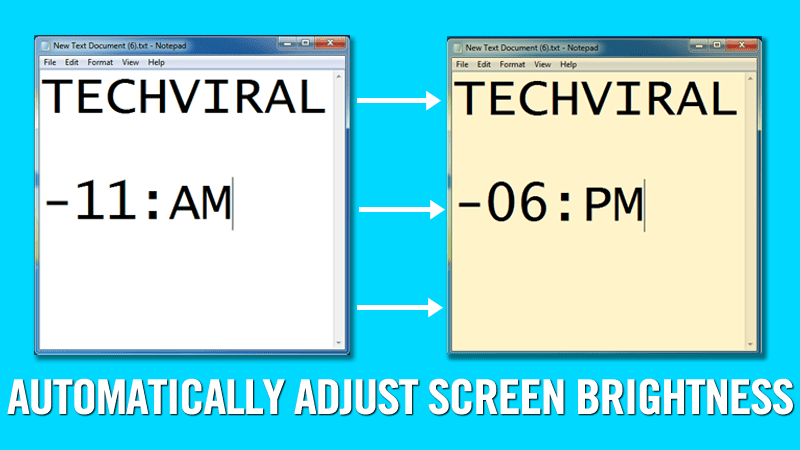
How To Adjust Computer Brightness Automatically Based On Time Of The Day
Have you ever thought to adjust your computer screen brightness based on any time of the day? If no then you need to think because using the computer on the regular basis is actually damaging your eyes. So here we have a solution that will automatically change the screen brightness according to the time of day and even according to the location too.
As we all know that most of the youngsters use their computers or laptops at night. If you are one of them who tend to use the computer until late night, then your eyes may go rough, and you will end up suffering eye-related disease. So it’s always better to adjust them according to the light around you. So here we have a solution that will automatically change the screen brightness according to the time of day and even according to the location too. So have a look at the complete guide discussed below to proceed.

How To Adjust Computer Screen Brightness Automatically by Time of the Day

The method is very simple and depends on a cool software which can be used to set the time periods to alter the screen brightness easily. You just have to follow the below steps to proceed.

Features Of F.lux Software:-

  • This tool makes you sleep better and protect your eyes from the bright screen.
  • This app change screen brightness best according to the room light like in sun time screen brightness will be maximum, and at night, it will be reduced accordingly.
  • In this app, you can setup settings according to your GPS location like in particular GPS location; the brightness level will set accordingly.
  • You can also set up the color sensitive work environment on your PC screen.
  • You can also control the transition of your screen brightness in the transition speed settings: fast or slow.

Steps To Configure The F.lux Application In Your PC

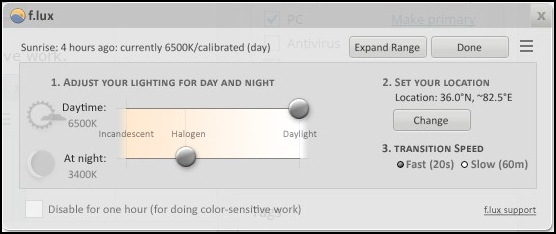
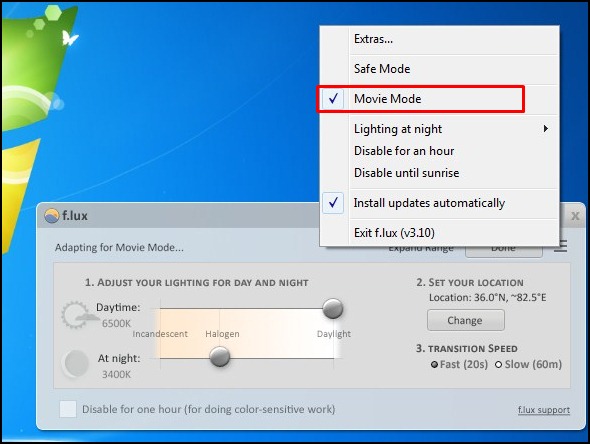
Step 1. First of all, download and install the f.lux software in a computer. Now after installation, launch it on your computer.

Adjust Computer Screen Brightness Automatically

Step 2. Now it will automatically detect the time and geographical location and will best set your screen color.

Adjust Computer Screen Brightness Automatically

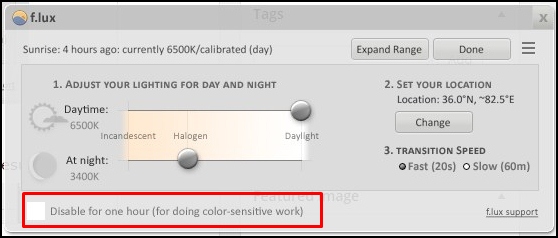
Step 3. You can untick the Disable for one hour option if you want to do color sensitive work.

Adjust Computer Screen Brightness Automatically

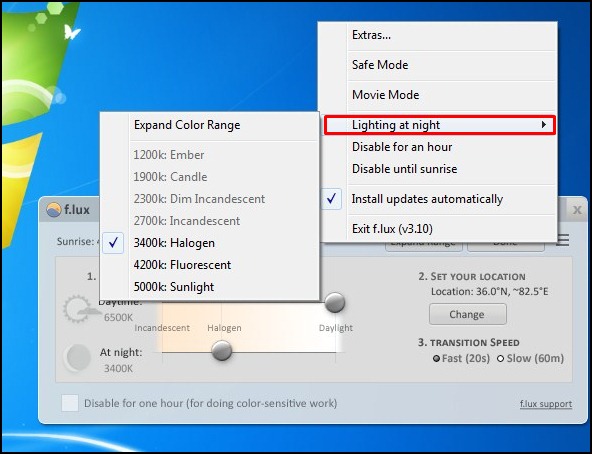
Step 4. Also, you can Adjust the Lightning for day and night in the Tool Settings.

Adjust Computer Screen Brightness Automatically

Step 5. You can also set the movie mode and some other mode in this tool for the best result.

Adjust Computer Screen Brightness Automatically

That’s it! You are done, now you PC will adjust brightness and color automatically according to time and geographic location and will protect your eyes.
Use this cool tool and protect your eyes from the UV rays coming from the screen of your PC.

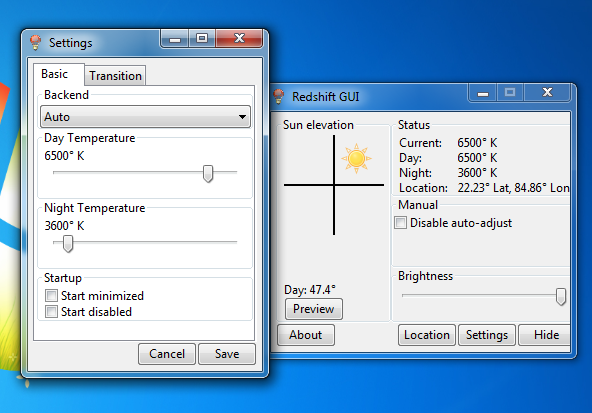
Using RedshiftGui

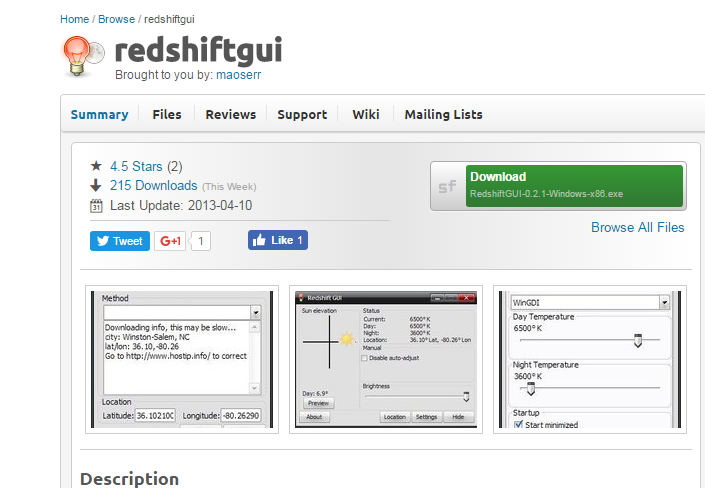
Redshiftgui changes the color temperature of your monitor to better match that of your surrounding. This means a cooler temperature during daytime (due to natural lighting), and a warmer temperature at night (due to indoor lighting).
Step 1. First of all, download and install RedshiftGUI on your Windows computer and launch it.

Using RedshiftGui
Using RedshiftGui

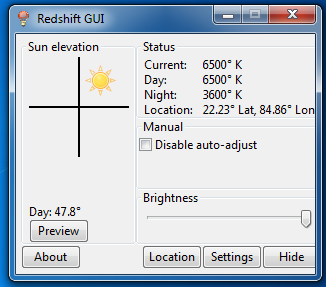
Step 2. You will see the screen like below.

Using RedshiftGui
Using RedshiftGui

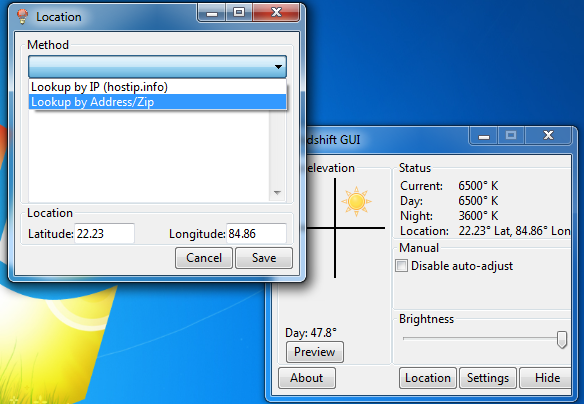
Step 3. Now you need to click on the location and then select the method of location. Choose your location and hit the save button.

Using RedshiftGui
Using RedshiftGui

Step 4. You can then click on settings to select the Day and night temperature.

Using RedshiftGui
Using RedshiftGui

That’s it! Now your computer screen brightness will automatically adjust according to your location.
Read More

Monday, September 4, 2017

Windows 10 ‘Fall Creators Update’ to launch on October 17

September 04, 2017 0

The new update will also have 'Timeline' feature that will let users "jump back in time to find what they were working on.

windows-10-stock-image
Microsoft announced that the ‘Fall Creators Update’ for Windows 10 will start rolling out on October 17 and it will include Virtual Reality (VR) and mixed reality support. Announcing the availability at the Internationale Funkausstellung (IFA) industry show which is underway in Berlin, Microsoft’s Executive Vice President for Windows and Devices Terry Myerson said that the free update, originally announced in May, will also include a new photo app and many tweaks to the overall design and usability of Windows 10.
In the keynote, Myerson highlighted several new features, such as new inking tools for stylus users including the ability to draw directly on PDF files, new 3D features for the Photos app and a new gaming mode that limits background tasks for better game performance. Official support for Microsoft Mixed Reality headsets — such as the models coming from Dell, HP, Acer and Lenovo — is also coming with the October 17 update, and those headsets are also expected to start shipping on or soon after October 17, Myerson added.
According to Microsoft website, the update will also have ‘Timeline’ feature that will let users “jump back in time to find what they were working on, whether it was two hours or two months ago”. The new Cortana notification will let users work on several devices.
{BGR}
Read More

First ever Windows 10 PC with Qualcomm Snapdragon 835 coming soon

September 04, 2017 0

The PC is said to be scheduled for a fourth quarter launch.

microsoft logo
Months ago, Microsoft and Qualcomm had come together to announce that they will soon be launching an ARM-powered PC. While we didn’t get to see this PC at the ongoing IFA 2017, Qualcomm did announce at the event that a Snapdragon 835-powered PC will soon be hitting the market. The PC is said to be scheduled for a fourth quarter launch.
Until now, Windows 10 has worked only on x86 chips, but this is changing as Microsoft wants to stop Intel’s dominance. The Windows 10 Device with ARM is going to be thin-and-light. It will have features similar to what we see on smartphones, and considering the Snapdragon 835 was designed for smartphones, it will have a long battery life. Apparently, the device will always be connected to a cellular network. We should also expect the PC to have stylus support.
It was last year in December, when Microsoft and Qualcomm revealed their plans about the ARM chips PC. Back then, Terry Myerson, Executive Vice President, Windows and Devices Group, Microsoft said, “Bringing Windows 10 to life with a range of thin, light, power-efficient and always-connected devices, powered by the Qualcomm Snapdragon platform, is the next step in delivering the innovations our customers love.”
In May, at Computex 2017, Microsoft had also revealed that ASUS, Lenovo, and HP would be launching laptops which would be powered by Snapdragon 835.
While the PC Microsoft is working on with Qualcomm is not expected to be exactly cheap, but manufacturers such as Lenovo, HP, and ASUS are also believed to be working on a Snapdragon 835-powered computer, which are believed to be priced at a more affordable segment.
Cristiano Amon, Qualcomm’s Executive Vice President has also said, “With compatibility with the Windows 10 ecosystem, the Qualcomm Snapdragon platform is expected to support mobility to Cloud computing and redefine how people will use their compute devices.”
Read More

Friday, September 1, 2017

Microsoft Windows 10 ‘Fall Creators Update’ to roll out on October 17

September 01, 2017 0

The update will bring support for virtual and mixed reality.

Microsoft Windows 10 Creators Fall Update preview
Microsoft on Thursday announced that the ‘Fall Creators Update’ for Windows 10will start rolling out on October 17 and it will include Virtual Reality (VR) and mixed reality support.
Announcing the availability at the Internationale Funkausstellung (IFA) industry show which is underway in Berlin, Microsoft’s Executive Vice President for Windows and Devices Terry Myerson said that the free update, originally announced in May, will also include a new photo app and many tweaks to the overall design and usability of Windows 10.
In the keynote, Myerson highlighted several new features, such as new inking tools for stylus users including the ability to draw directly on PDF files, new 3D features for the Photos app and a new gaming mode that limits background tasks for better game performance.
Official support for Microsoft Mixed Reality headsets — such as the models coming from Dell, HP, Acer and Lenovo — is also coming with the October 17 update, and those headsets are also expected to start shipping on or soon after October 17, Myerson added.
According to Microsoft website, the update will also have ‘Timeline’ feature that will let users “jump back in time to find what they were working on, whether it was two hours or two months ago”.
The new Cortana notification will let users work on several devices.
“Log out of one device and Cortana asks if you want to continue working in your app, doc or website on your next device. You can also copy and paste between connected devices from your clipboard,” the website added.Also, users can save files on Microsoft Cloud and access them anywhere with ‘OneDrive Files On-Demand’.
Read More